Visual connections
See how every asset relates to each other: parents, children, and every step in between.
Generation is only half the story. Hylope keeps every asset organized, every prompt reusable, and every step connected, in one fast app.
Every generation, edit, and upscale is visually connected. Trace back through any creative chain to understand how you got there, and reload any step instantly.
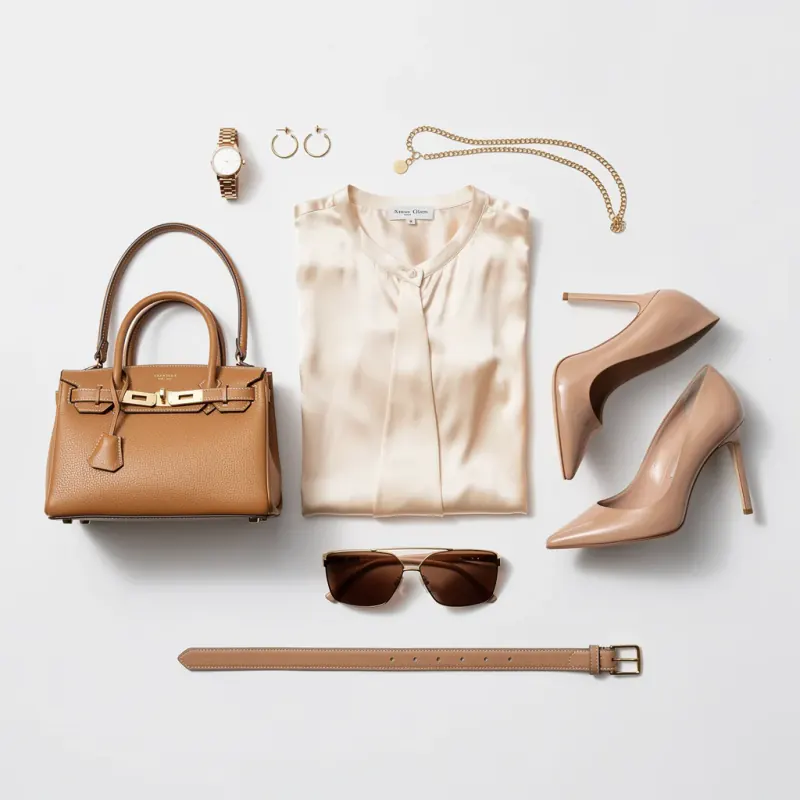
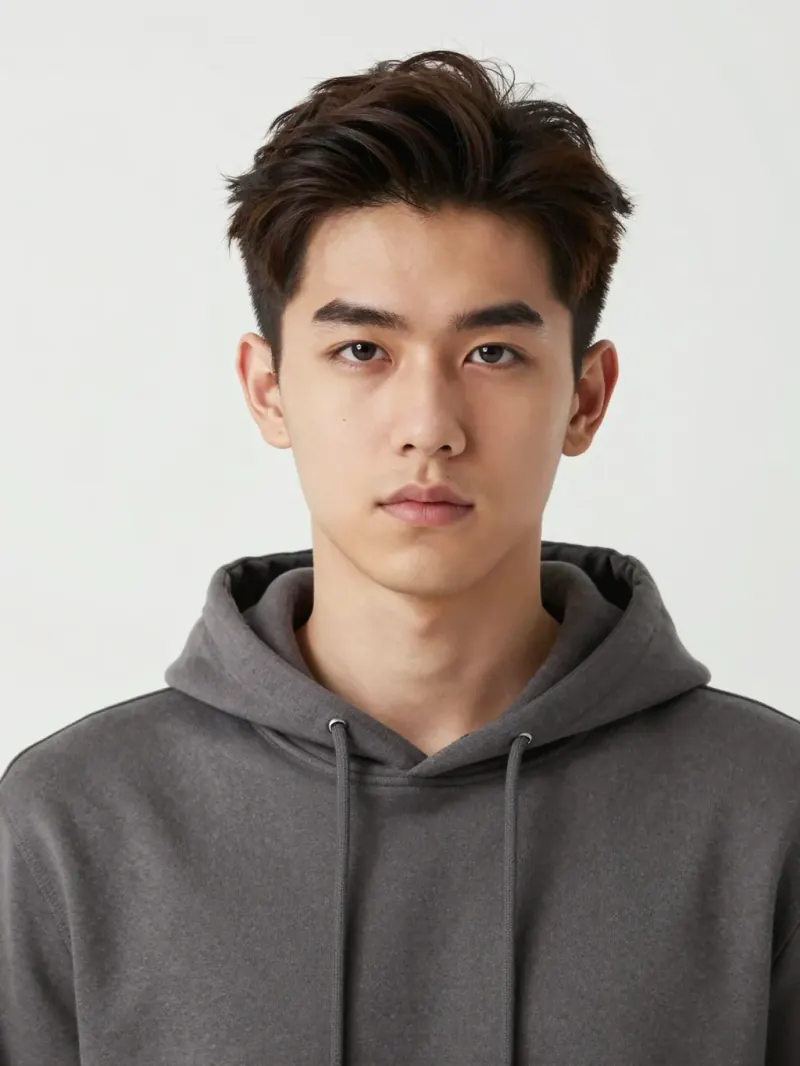
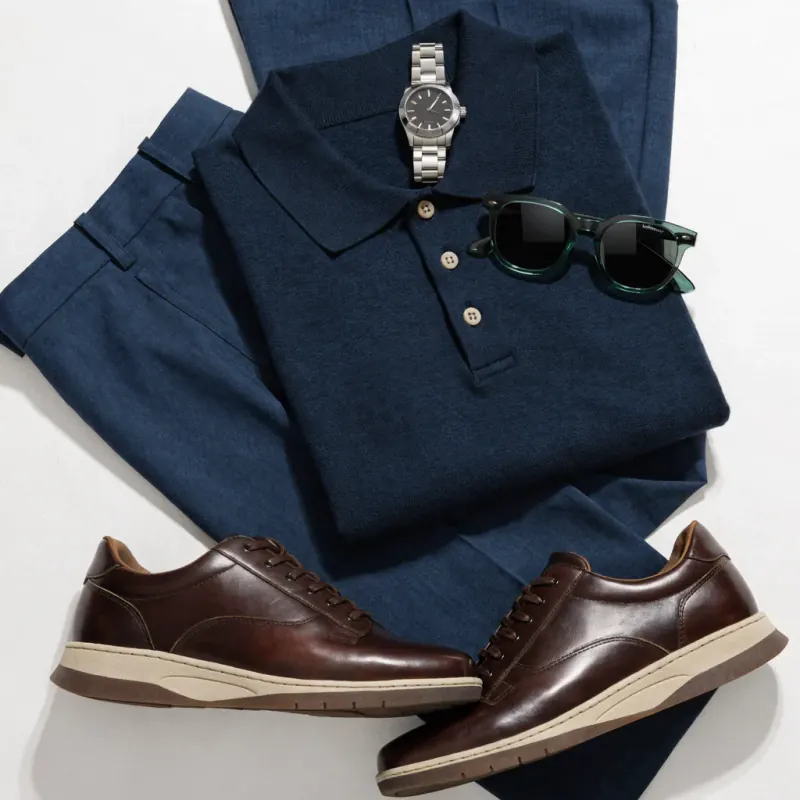
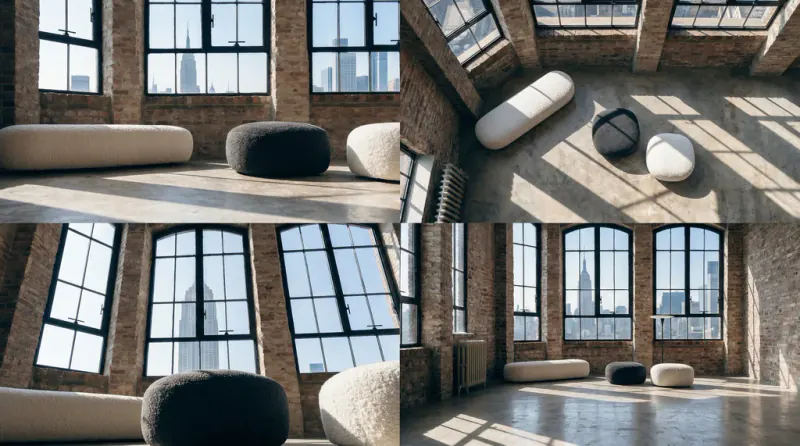
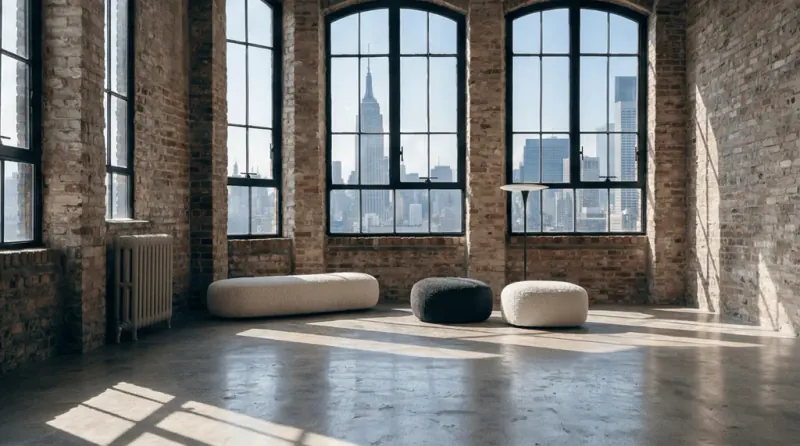
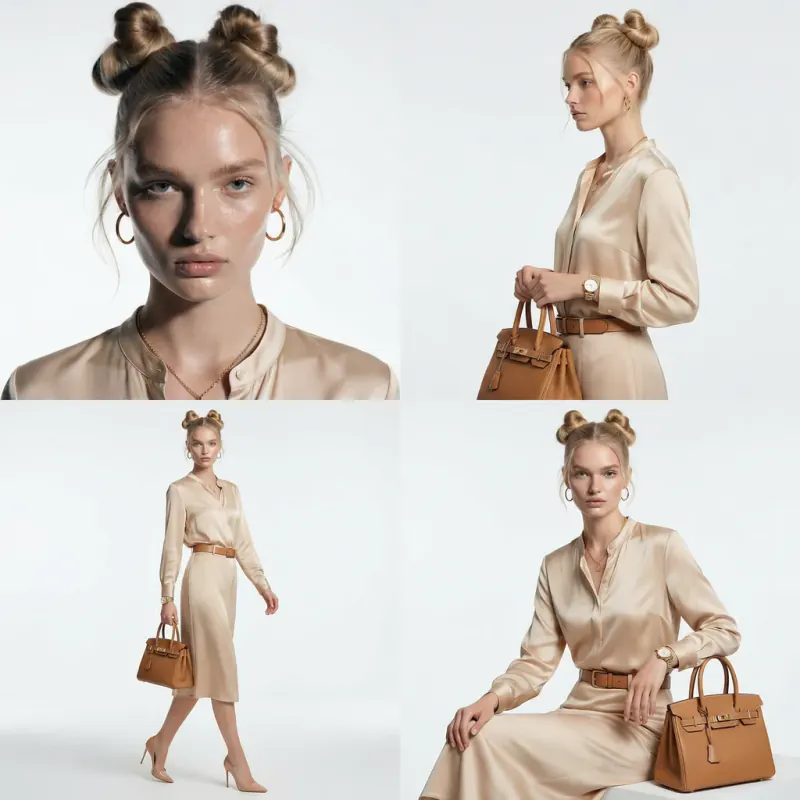
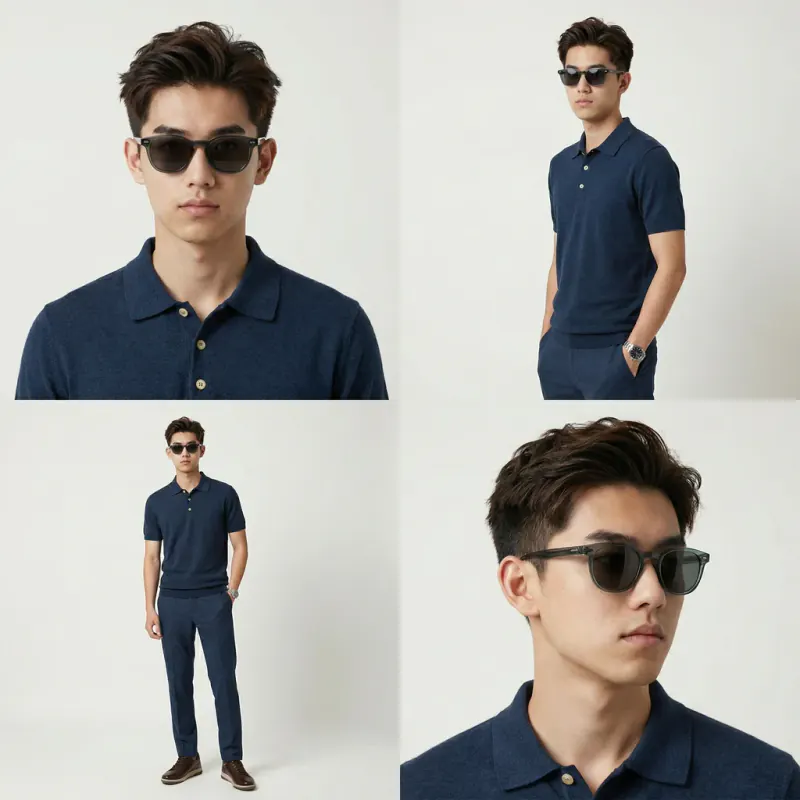
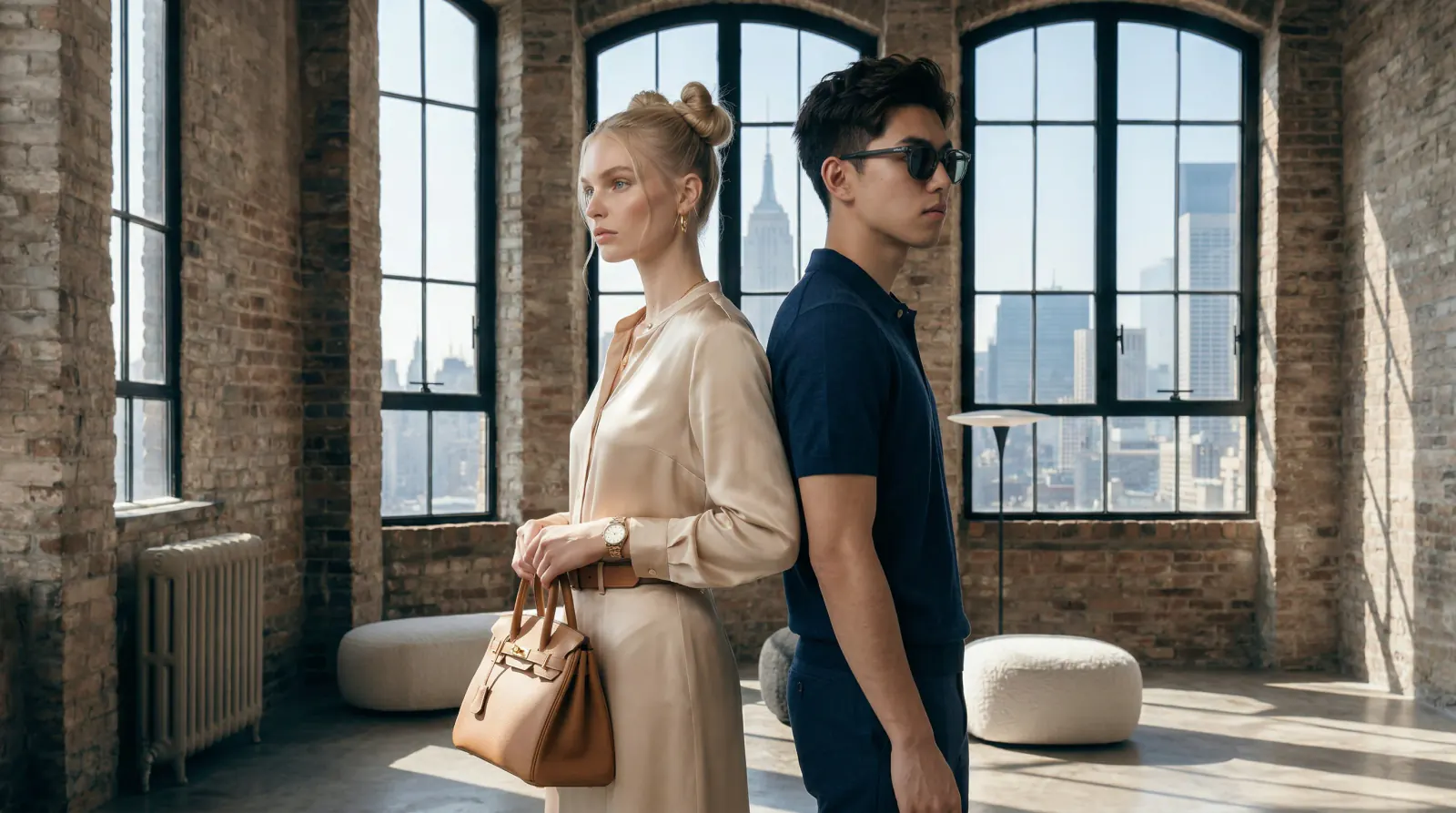
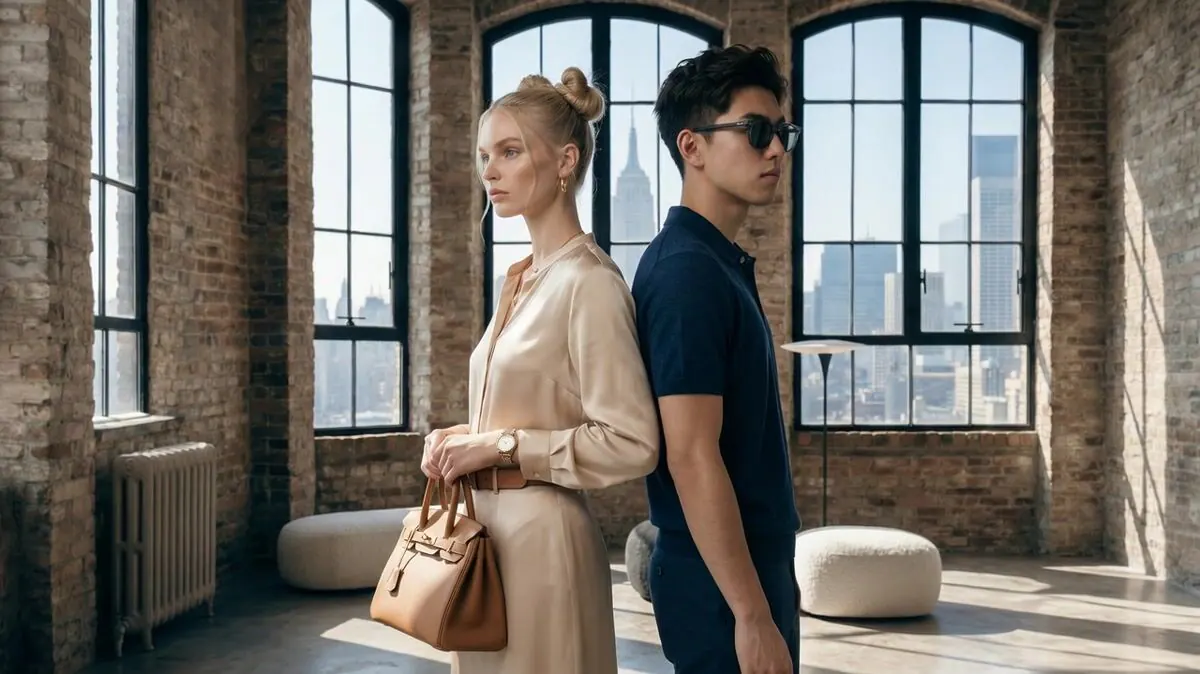
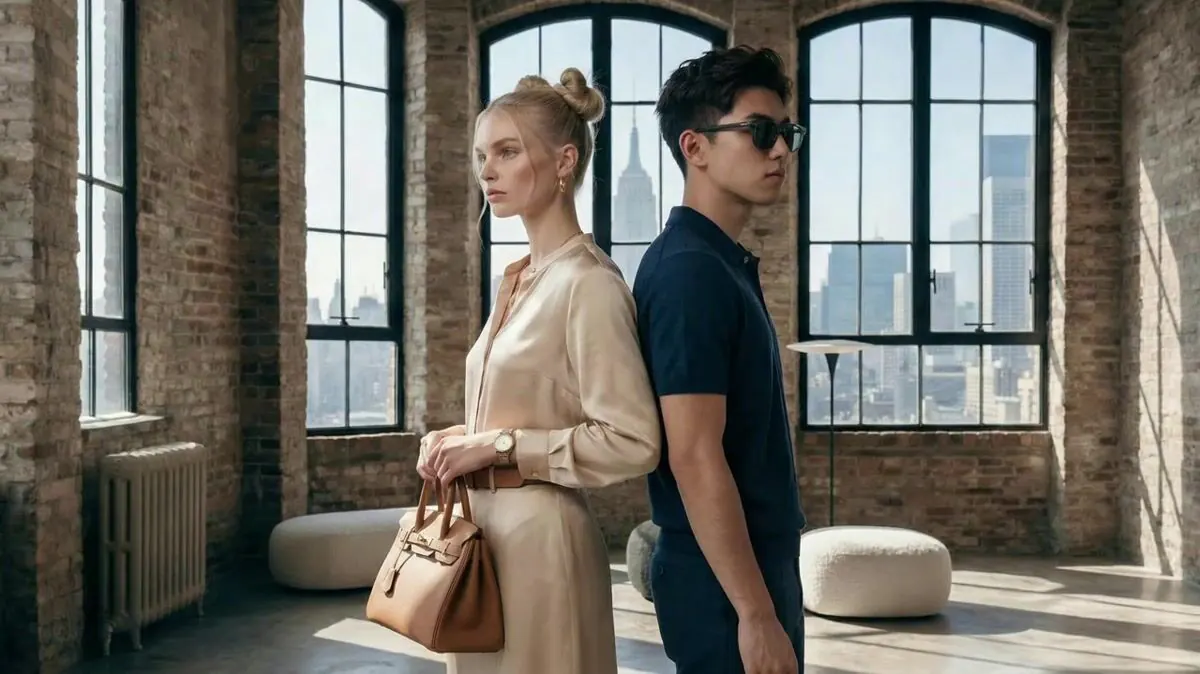
See how every asset relates to each other: parents, children, and every step in between.
Click any node to restore the exact prompt, references, and settings used to create it.
Your entire creative journey stays accessible, from first prompt to final render.
Save @style, @lighting, @environment, @framing, @fx, @motion and more as reusable text blocks, then use them in any prompt across the app. Start from a growing library of public presets, or build your own.
One fast surface for finding, comparing, selecting, and moving thousands of images, videos, and audio assets across every project.
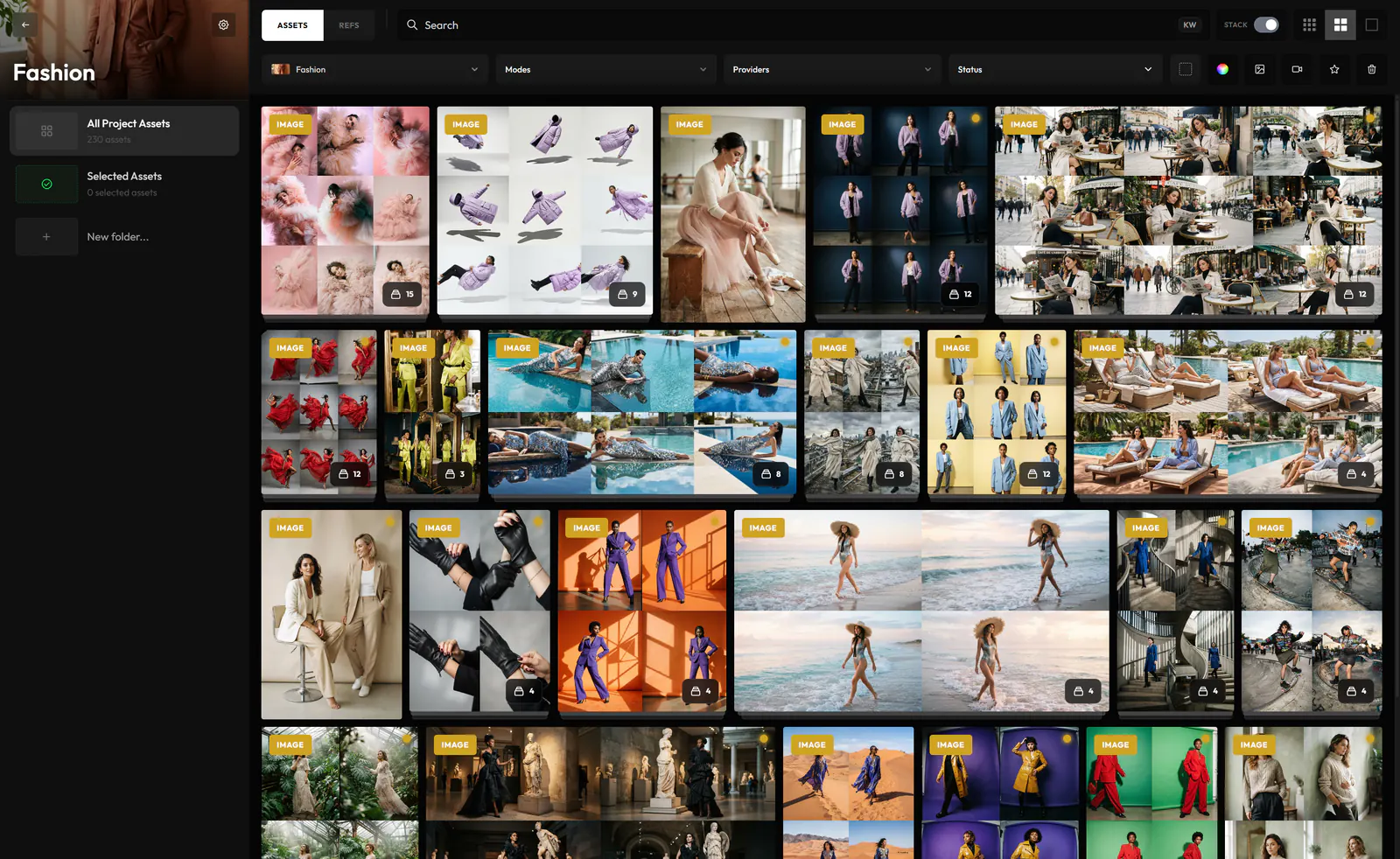
A few hundred generations a day is normal. The library stays legible because related results group themselves and everything stays searchable by what is in it.
Any image or video can become one: give it a name, and the whole project picks it by that name from then on.
The asset behind the name can change to a newer version or a different variant, and the work built on it stays connected. No re-picking files, no hunting through the gallery.
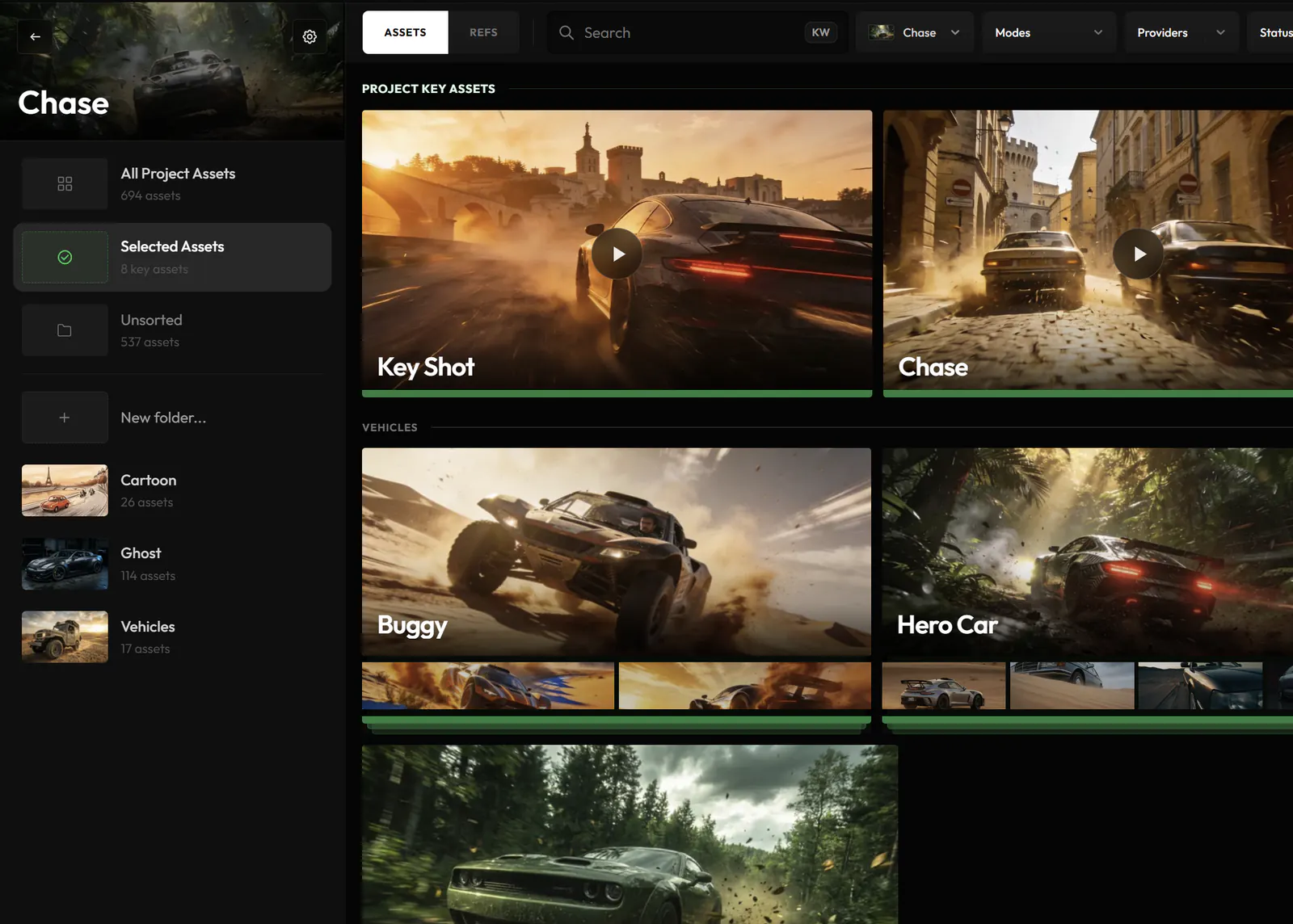
Every generation lands in a project, and every project lives in a workspace with the people who should see it.
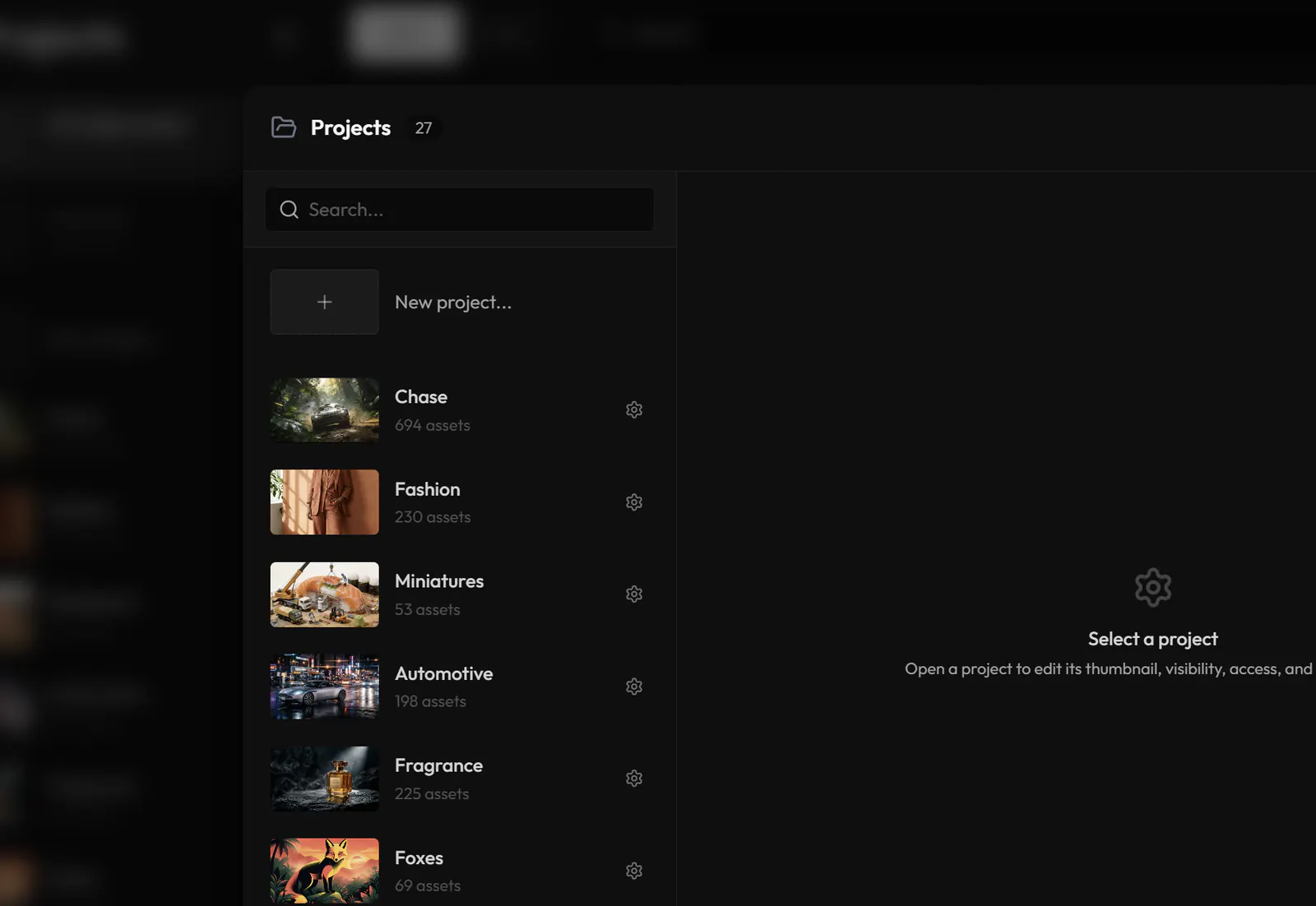
Assets, folders and selects stay inside the project, and each one carries its own thumbnail, visibility and costs.
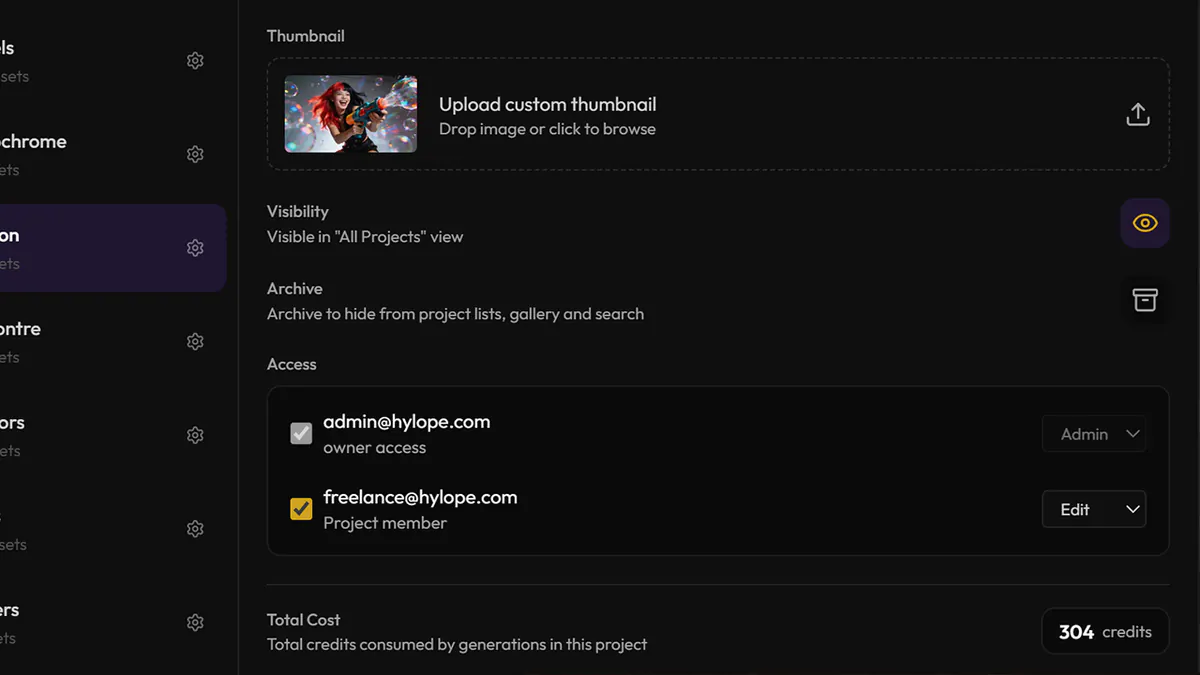
Invite collaborators into the workspace and set access per person. They open the same assets and history you do, with nothing to export or re-upload.
The bar takes plain text, reusable @tokens and reference images, plus a rewrite that follows the rules of the model and mode you are in. When a prompt needs more than a sentence, it opens in the builder.
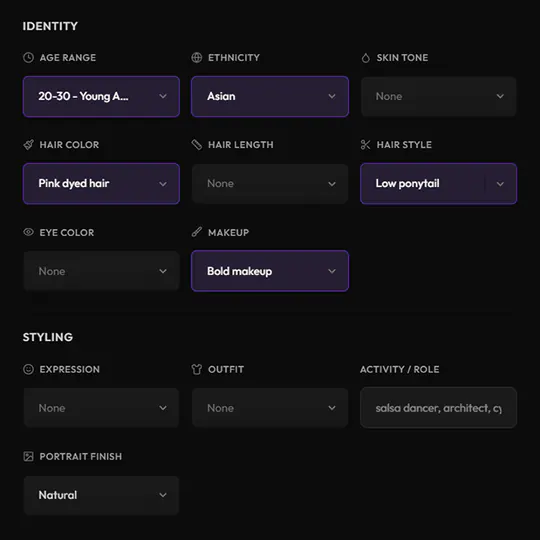
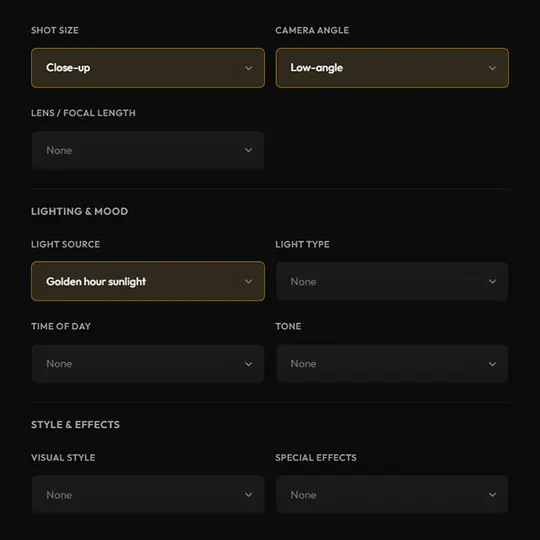
The prompt you already wrote opens with the controls for the mode beside it: identity for avatars, camera and lighting for image, shot by shot for video. The text stays yours to edit.
Define age, ethnicity, skin tone, hair, eyes, expression, wardrobe, and role without turning the prompt into an unreadable wall of text.
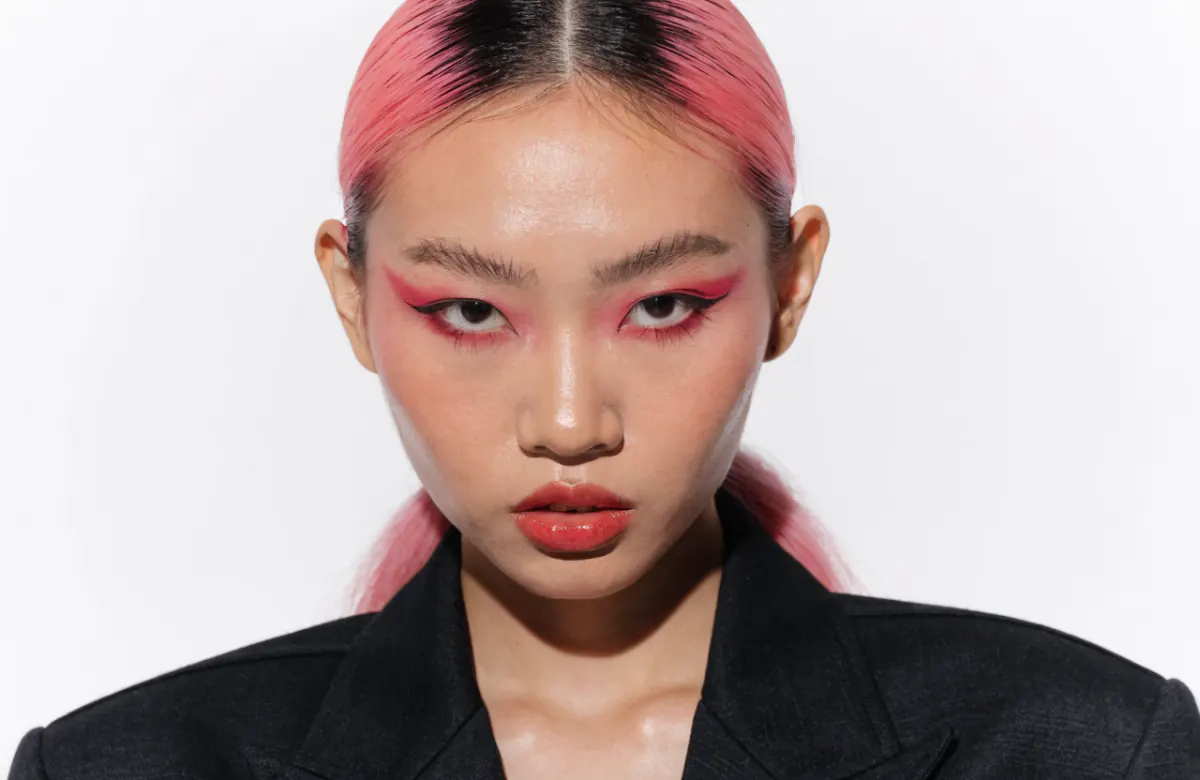
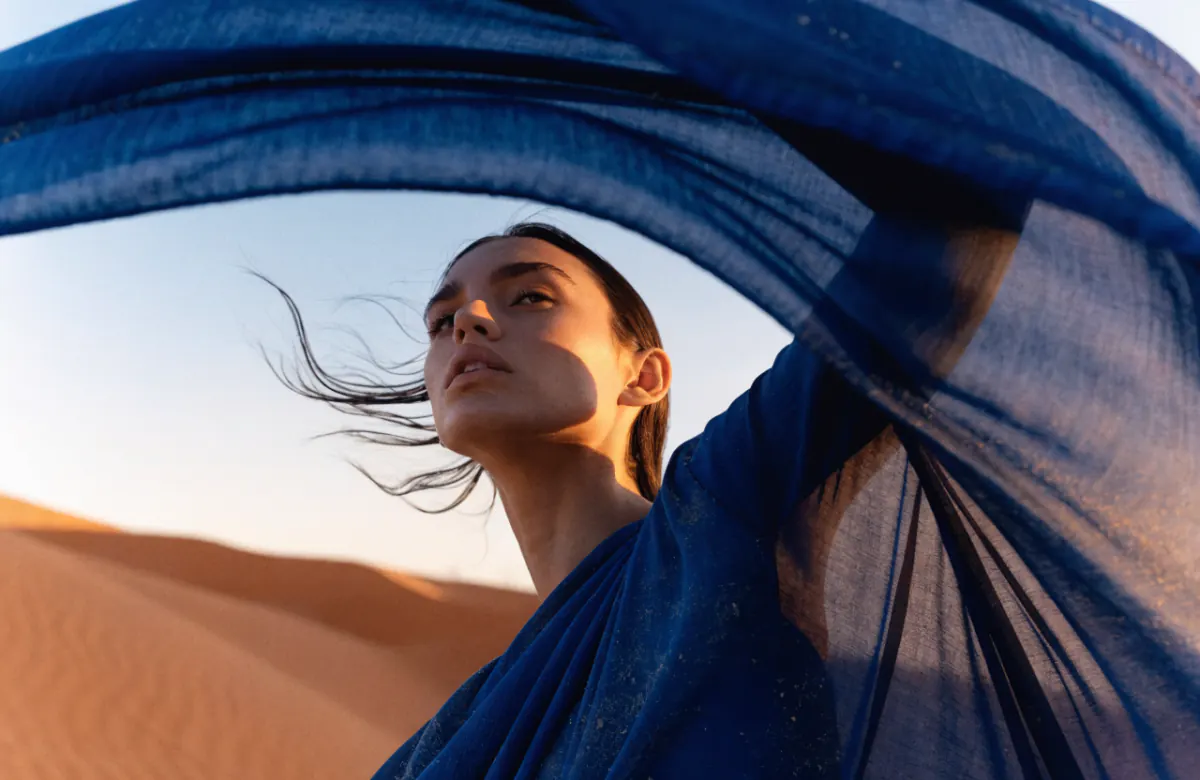
Layer cinematic controls for framing, lens, lighting, time of day, mood, style, and effects while the written direction remains easy to edit.
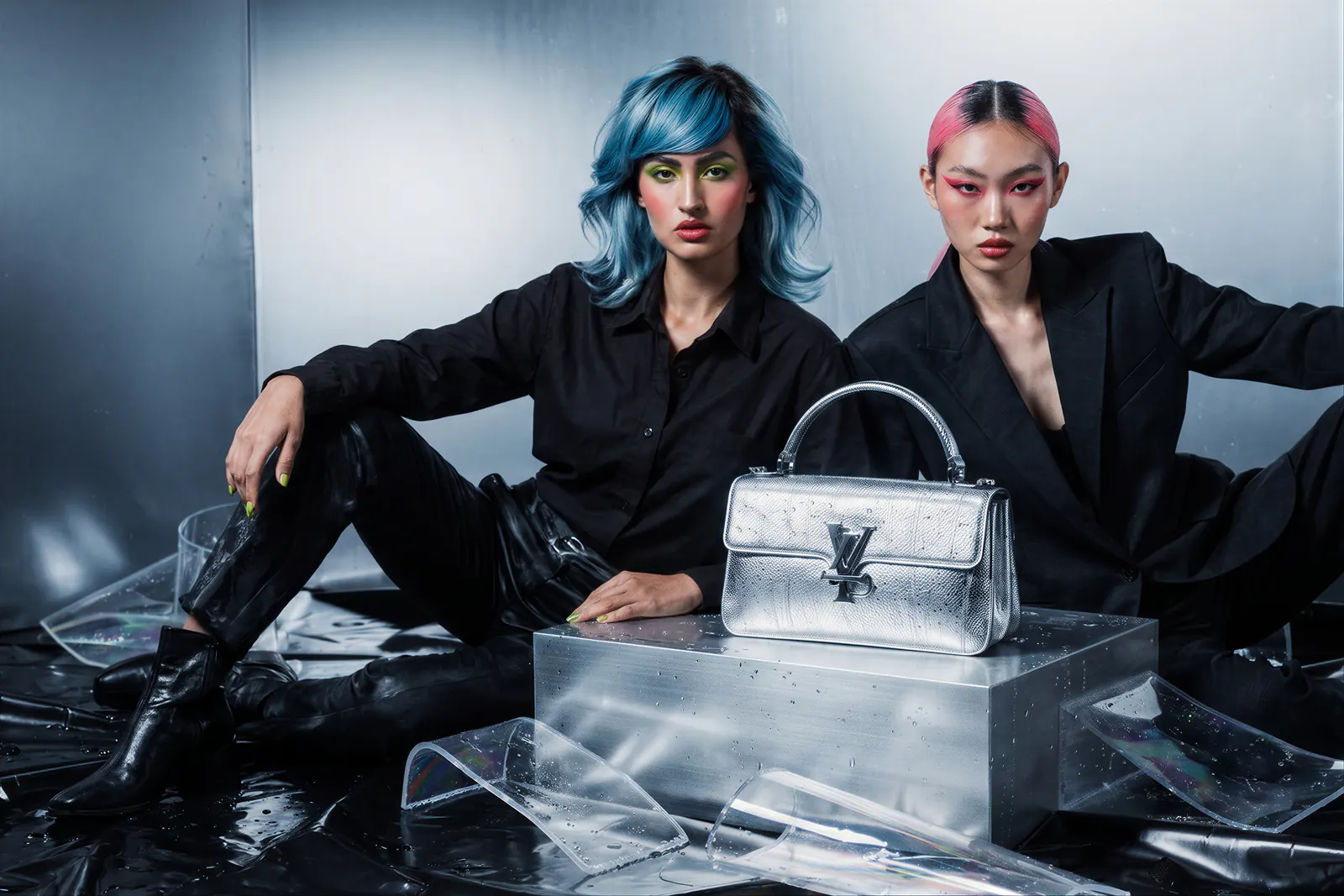
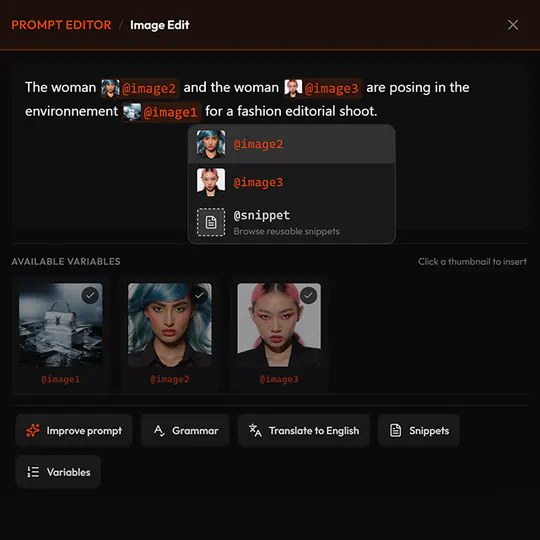
Bring references into the editor as visible @image tokens, then write precise edit instructions without losing track of which asset is doing what.
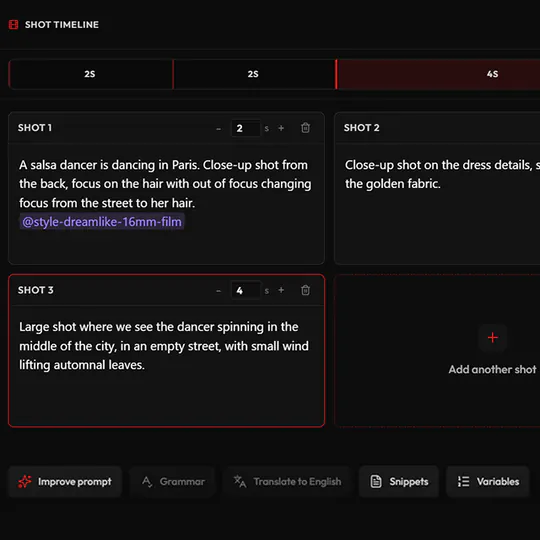
Break a longer idea into shots laid out as blocks, then give each one its own prompt, duration, and camera or motion direction.
Write and revise without the constraints of a single-line bar.
Resolve reusable language without flattening the source prompt.
Keep visual references visible and addressable in the text.
Generate structured prompt variations from one master direction.
Pick camera, lighting or identity options instead of writing them.
Rewrite the complete direction, with a one-click path back.
Clean the language while preserving variables and tokens.
Translate direction without breaking the structured prompt.
Whatever you extract or edit becomes its own asset, attached to the one it came from. Nothing leaves the app to be worked on and imported back.
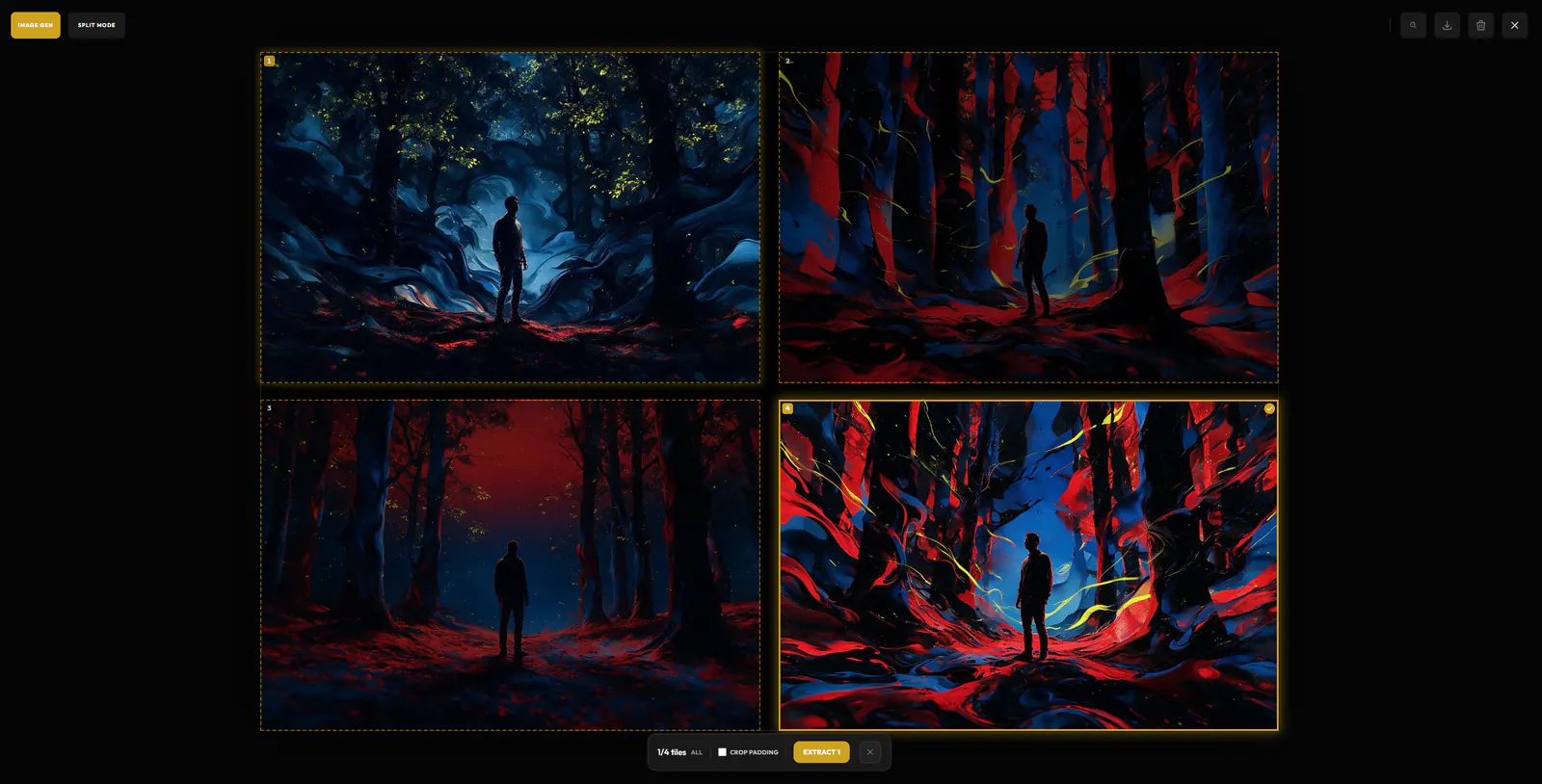
Contact sheets you generate in Image Gen, Image Edit and Avatar come back as one 2x2 or 3x3 image. Split turns it back into separate assets, measuring the gaps between the tiles itself so every crop lands clean. Check the tiles it found, pick the ones you want, adjust the crop padding, and extract them as children of the sheet.
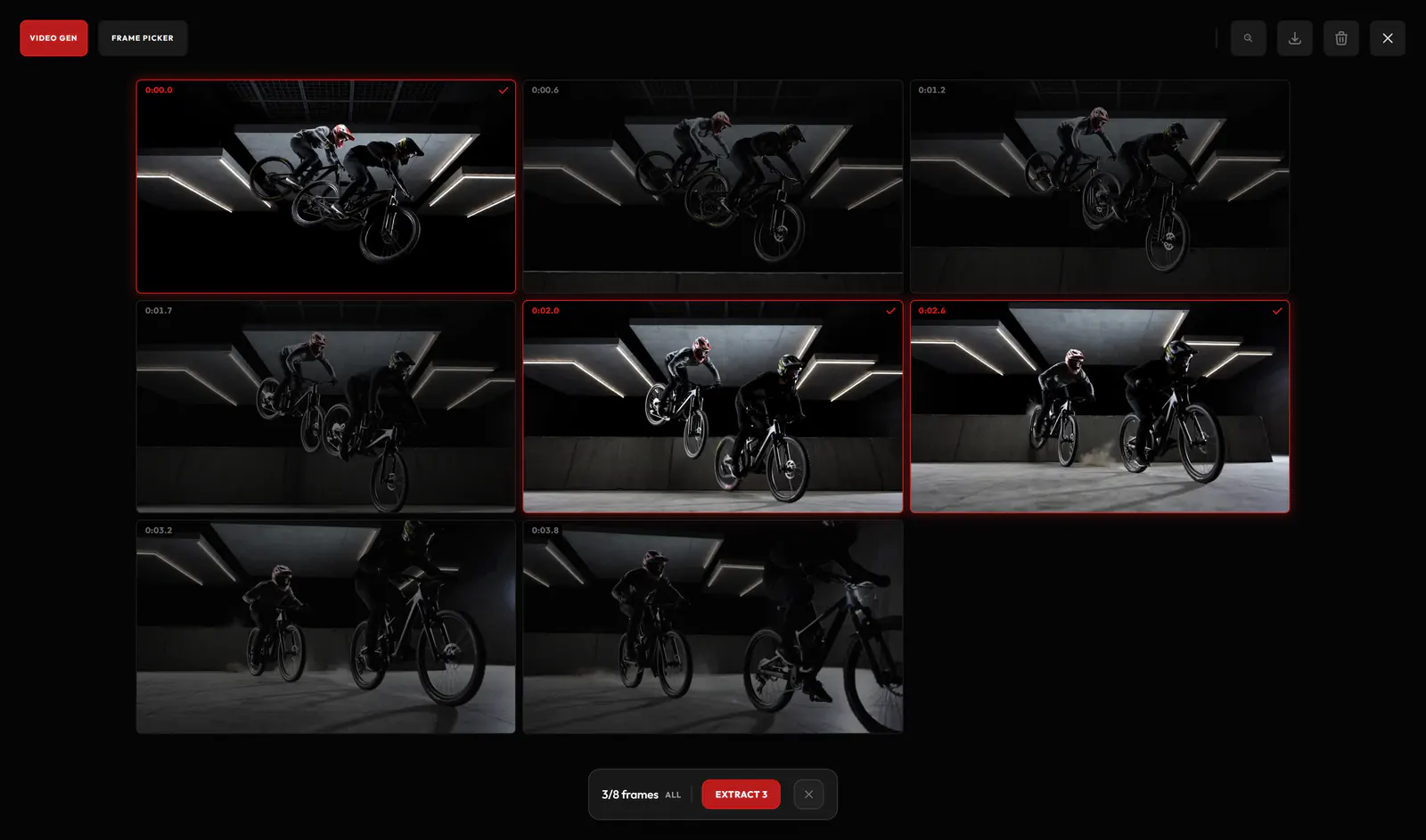
Scrub the source, mark one frame or several timecoded moments, and save them as image assets that stay linked to the video.
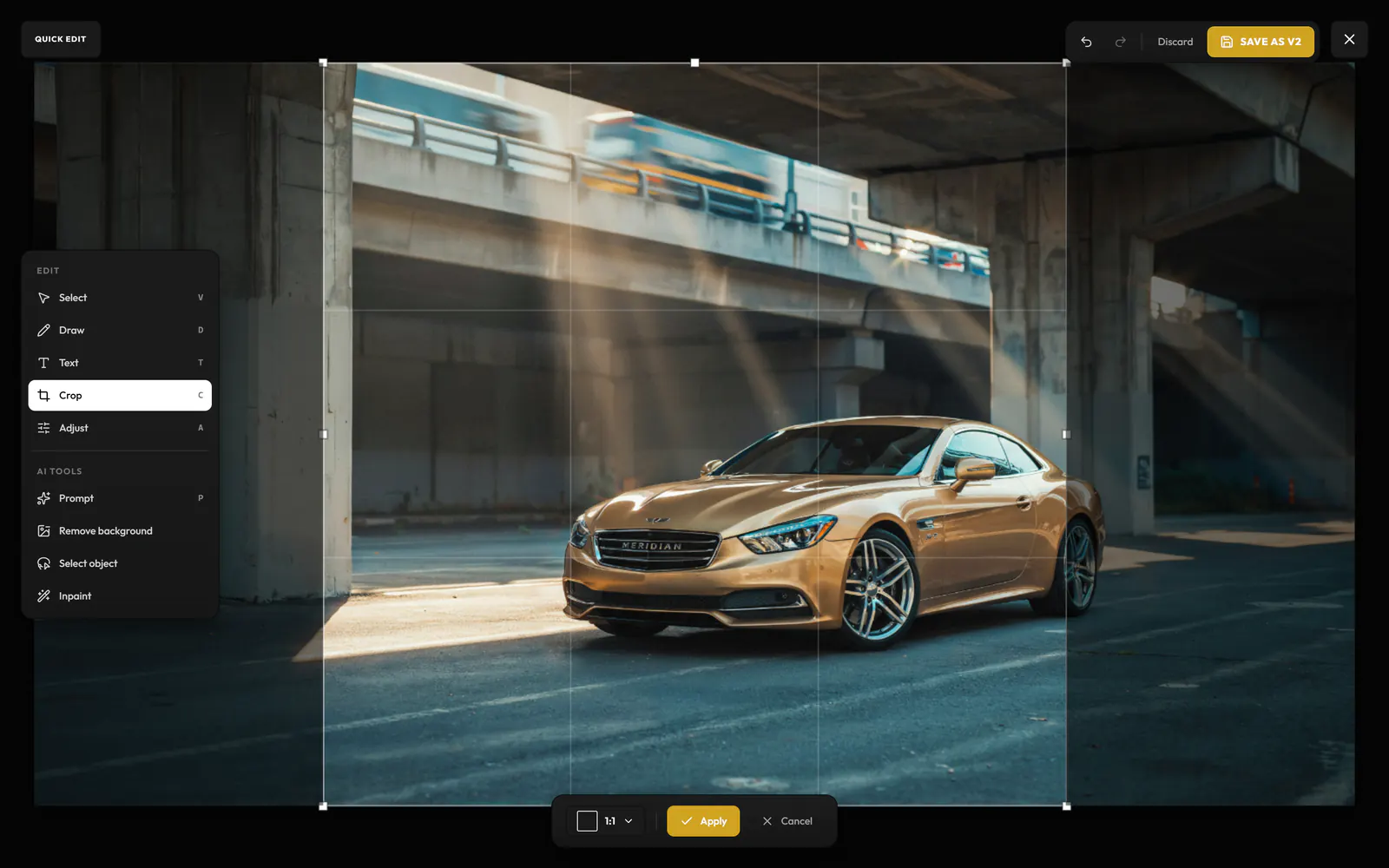
Inpaint, remove a background, crop an image or trim a video. The result is saved as a new version of the same asset, so the original never goes anywhere.
Start with 200 free credits. No credit card required.